
Choose notifications and troubleshoot missing updates
Set email and push preferences, enable phone permissions and understand reminders and recent updates.
All player guides and FAQs · Clubs & organizers
Choose channels and types
Notification delivery depends on your channel and category choices, device permissions and service availability. Check Schedule and the activity itself for the latest status, even when no message arrives.
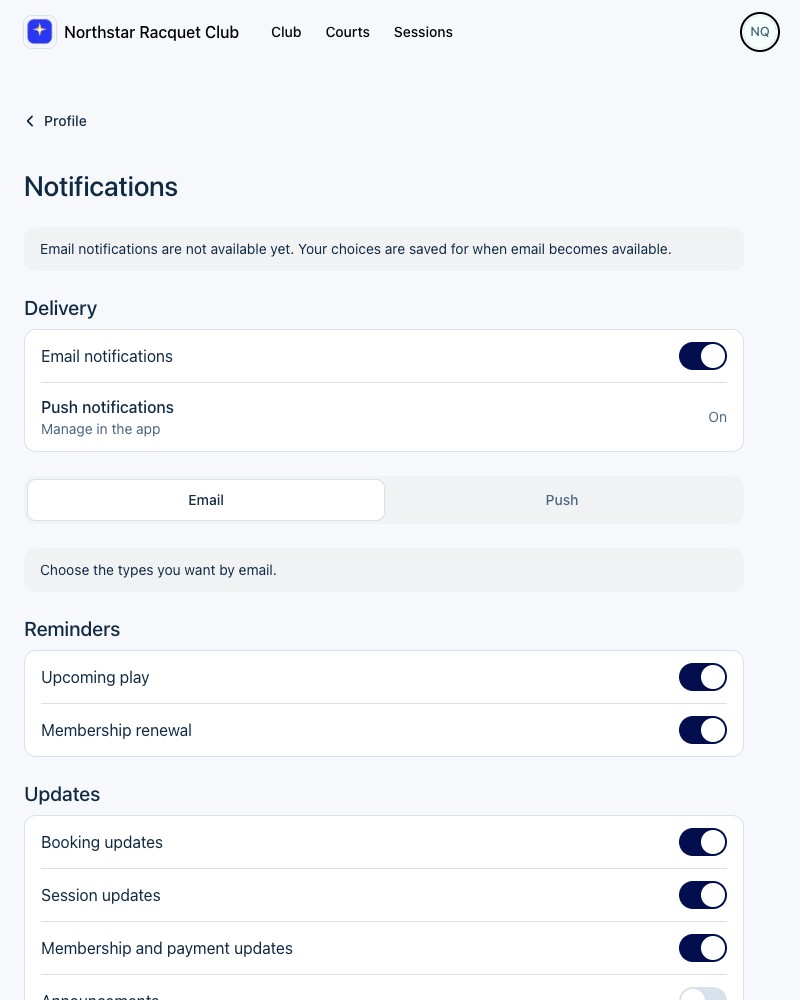
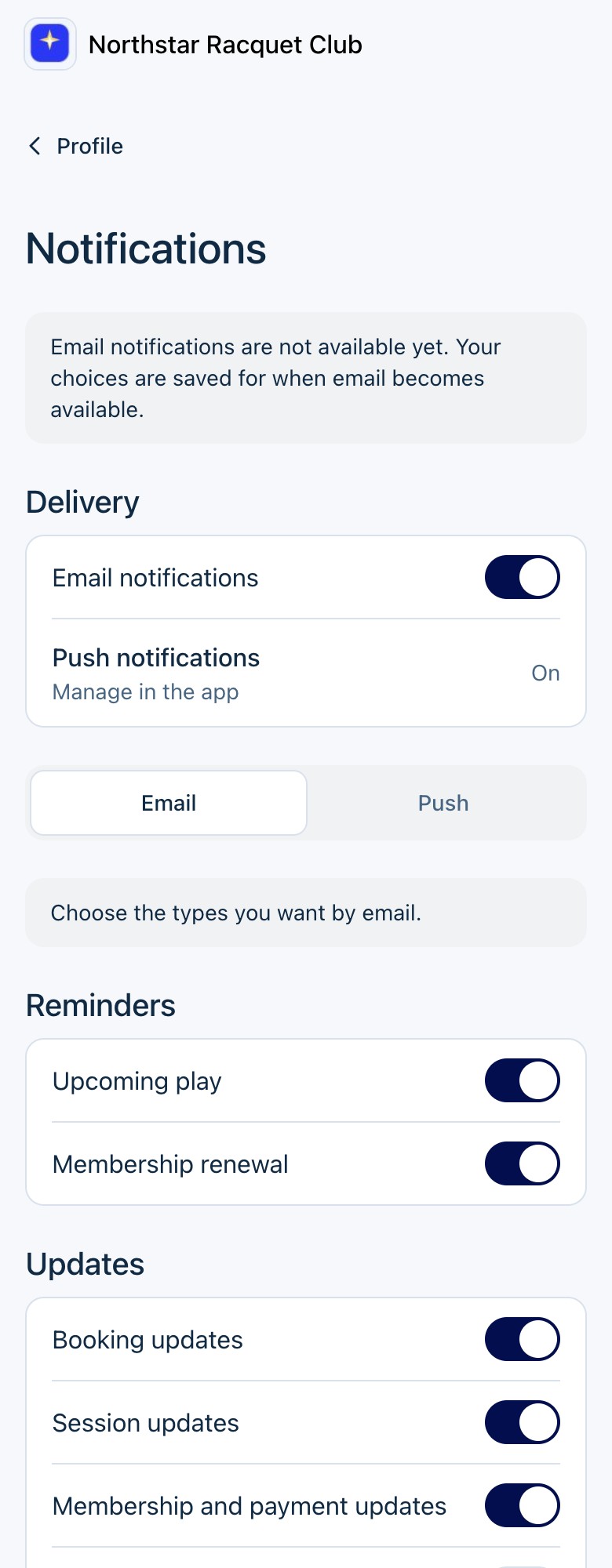
Open Profile → Notifications on the website or app. The controls available can depend on your installed app version; use the current player website to review saved preferences if your app looks different.
- 1
Check the Email notifications switch. If the screen says email is not available yet, your choices are saved but turning it on does not enable email delivery.
- 2
Select Email or Push to choose the types for that channel independently.
- 3
Set Upcoming play and Membership renewal reminders, then Booking updates, Session updates, Membership and payment updates, and Announcements as you prefer.
- 4
Check the channel’s main setting as well as its categories. Saved category choices do not turn a disabled channel on.

Phone permissionsThe website shows Push notifications as Manage in the app. Enable push in the installed app and allow notifications in your phone’s settings. On a new phone, account preferences alone do not grant device permission.
What reminders mean
An upcoming-play reminder is usually scheduled around a day before a confirmed court booking or session. It can be earlier to give you time before a cancellation cutoff, or adjusted around overnight quiet hours in the club or venue’s time zone. A late booking may receive a shorter reminder or none.
Manual membership renewal and automatic billing use different reminders. Check Membership for the expiry or next-payment date; do not rely on receiving a reminder on the day membership ends.
When available and enabled, routine play and three-day membership reminders prefer push, with email as a backup. Confirmations and important changes can use both channels. There are no SMS play reminders; SMS verification codes are for sign-in.
If an update is missing
Notification delivery depends on your channel and category choices, device permissions and service availability. Check Schedule and the activity itself for the latest status, even when no message arrives.
- 1
Open Schedule or the session and check the current status. Awaiting payment is not a confirmed place.
- 2
Check Profile → Notifications for recent updates and your saved choices. Recent updates are not a permanent record of every action.
- 3
For push, check both CourtBeam’s settings and your phone’s notification permissions, focus modes and Android notification categories where applicable.
- 4
For email, check that email is available, the channel and relevant category are on, and your profile address is correct. Check spam folders.
- 5
If the information still does not match, contact the club about the activity or CourtBeam about the app problem.
Unsubscribe or change your mind
A notification email’s unsubscribe link turns off notification email after confirmation; it does not turn off push or cancel your bookings. You can review email preferences again in Profile → Notifications. Security messages and payment receipts can be separate from optional notification emails.
Ask your club about bookings, membership rules or refunds. Contact CourtBeam for an account or app problem.