
Add, renew or change a player’s membership
Make a guest a member, record an offline payment, grant complimentary access, or change an existing membership.
All club and organizer guides · Player help and FAQs
Choose the action that matches the change
Member or Guest comes from the player’s qualifying membership and its dates. Editing their profile does not grant or remove benefits. Open Memberships → Members to manage the actual membership record.
- Add membership: record a new cash or bank-transfer membership, or grant complimentary access.
- Renew membership: record the next term and its payment, or a complimentary renewal. This creates a new period after the previous one.
- Extend without payment: move an existing end date later without recording new money.
- Stop renewal: stop future online renewal while keeping benefits through the current paid period.
- Suspend: pause benefits immediately. Billing continues until renewal is stopped.
- Cancel membership: end benefits immediately and stop online renewal.
Add a paid or complimentary membership
- 1
Check the player’s phone number and existing membership history first. Create the player in Players if needed. Publish the intended tier in Memberships → Tiers.
- 2
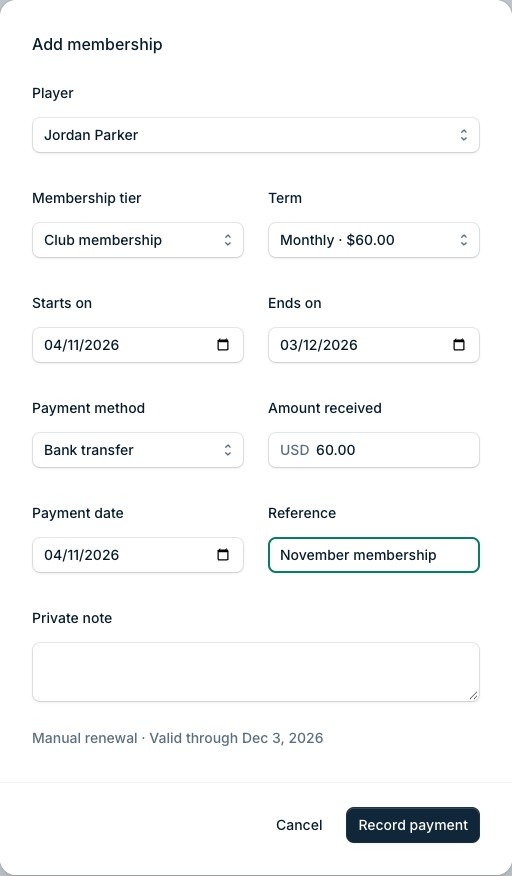
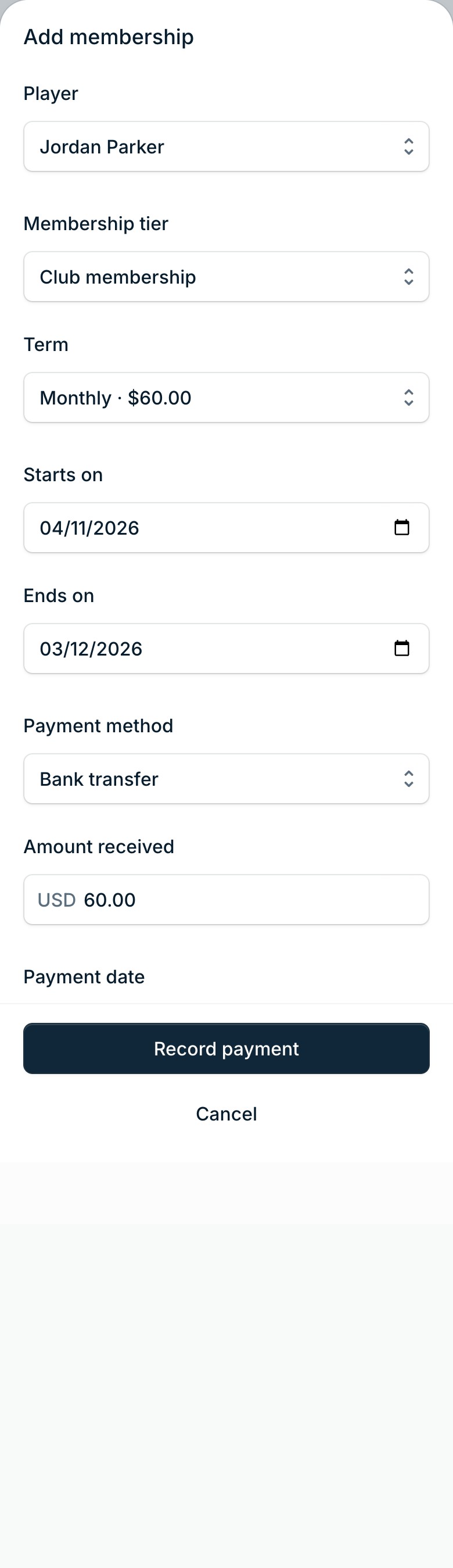
Open Memberships → Members and choose Add membership. Select the player, Membership tier and Term.
- 3
Review Starts on and Ends on. A future start date does not give immediate member access.
- 4
Choose Payment method. For Cash or Bank transfer, enter the actual Amount received and Payment date, plus a reference if useful. This records money already received; it does not charge the player’s card or start automatic billing.
- 5
If a Joining fee is due, say whether it is included in the amount received or waived. Enter a reason if it is waived.
- 6
For no-charge access, choose Complimentary and enter the reason. Review the dates before submitting.
- 7
Choose Record payment for an offline payment or Grant membership for complimentary access. Confirm the new record, dates, payment details and status in the player’s membership history.

Renew after an offline payment
If automatic renewal is active, stop renewal in Memberships before recording an offline renewal. Review the existing paid period first so you do not collect money twice. A manual renewal does not start a new recurring card subscription.
- 1
Find the player’s membership in Members and choose Renew membership from its actions.
- 2
Review the tier, term and dates. The new period must begin after the previous membership ends; the form normally starts it the following day, or today if that membership has already expired.
- 3
Choose the actual payment method, amount and payment date, or Complimentary with a reason. Submit and check the new period in the history.
Extend access without recording a payment
- 1
Open the membership’s actions and choose Extend without payment.
- 2
Choose a New end date after the current end date, enter the Reason and choose Extend membership.
- 3
Check the saved date and status. Extending a date does not settle an outstanding payment, change a Stripe billing date or restore a suspended or cancelled membership.
Stop renewal, suspend or cancel
- 1
Find the correct membership and open its actions. Choose Stop renewal, Suspend or Cancel membership according to the outcome you need.
- 2
Read the consequence in the confirmation, enter a Reason and confirm.
- 3
Check the resulting status and renewal information. Review existing bookings and any refund separately; these actions do not automatically cancel bookings or promise a refund.
Suspending is not stopping billingSuspension pauses benefits immediately. Stop renewal separately if the player should not be charged for the next period.
If the player still appears as a guest
Check the correct player and phone number, the start and end dates in the club time zone, and whether the membership is active, expired, suspended, cancelled or awaiting payment. A future membership does not make someone a member today. Check the member-specific court or event rule too.
If those checks do not explain the result, send support the player and membership references, the expected dates and the affected booking. Do not repeatedly add memberships to try to change the label.
Send us the step that failed and the reference you see. We will help you pick it up.